
How to Effortlessly Move Photos from Google Drive to Google Photos
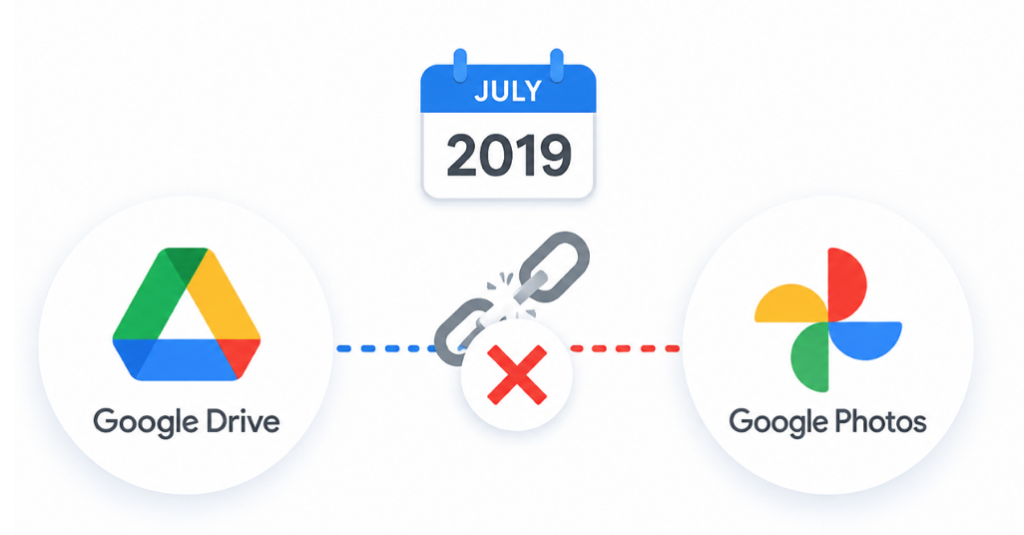
For years, Google offered automatic synchronization between Google Drive and Google Photos. However, since Google severed this direct integration in July 2019 to prevent users from deleting or modifying images by mistake or accident (because deleting one photo or video from one platform often removed it from the other too, even when users only meant to delete it from one), users have been left stranded.
If you have thousands of photos scattered across project folders, temporary backups, or shared folders in Google Drive, you know that keeping them there is not a good idea. To enjoy a proper gallery experience, you need to transfer those image files into Google Photos.
Google Drive vs. Google Photos: What You Might Want to Know
Although both products share your master Google Account storage quota, they are built with entirely different architectures and user experiences in mind:
| Feature | Google Drive | Google Photos |
| Primary Purpose | Cloud file system & document storage | Media gallery, album organization & AI search |
| File Structure | Folder hierarchies, sub-folders, directory trees | Chronological timeline, auto-grouped face/location tags |
| Viewing Experience | Standard file thumbnails, manual document previews | Full-screen carousel, slideshows, Memories, and widget support |
| Editing & AI Features | Basic file actions (rename, move, share link) | Magic Eraser, color corrections, auto-animations, face grouping |
| Sharing Dynamics | Permission-based folder/file links for collaboration | Shared Albums, direct partner sharing, live family updates |
Why Move Drive Photos to Google Photos?
Understanding the core differences between Google Drive and Google Photos makes one thing clear: holding onto image files in a file-directory system cloud storage creates unnecessary daily friction. Shifting all your media collection to the dedicated photo cloud help transform static files into an active, intelligent library.
Consolidating Scattered Backups: Over time, phone backups, camera SD card dumps, and WhatsApp image exports end up buried deep inside random Google Drive directories. Moving them to Google Photos aggregates them into a single timeline sorted by actual EXIF capture date.
Instant Visual Search: Finding a specific photo in Drive requires navigating folder paths or knowing the exact filename (e.g., `IMG_20260810.jpg`). Within Google Photos, you can search for concepts like “baby shower” or “vocation” to locate files easily.
Transfer Photos from Google Drive to Google Photos via MultCloud
So, here comes the core problem: how to transfer Photos from Google Drive to Google Photos? Manual downloading all photos and videos from the Google Drive to your local device, and then re-uploading them to the Google Photos? Of course, it can be a great solution when you just need to transfer a few images or videos.
However, what if you have to transfer 50GB or more media folders? Download all of them to your local disk, compress them into broken `.zip` files? That will consume massive local drive space, use heavy internet bandwidth, and waste hours.What’s worse, any internet issues might force you to start the whole process from scratch.
So, it is necessary to employ a professional cloud file transfer tool like MultCloud. It is an enterprise-grade cloud management platform designed to connect about 40 cloud storage services—including Google Drive, Google Photos, OneDrive, Dropbox, and iCloud. Rather than transferring data through your computer or phone, MultCloud creates a direct server-to-server connection between your cloud storage accounts.
Core Advantages of MultCloud
Direct Cloud-to-Cloud Migration:Data transfers directly from Google Drive servers to Google Photos servers. Your local bandwidth and hard drive space remain completely untouched.
True Offline Execution:Once you launch a transfer, you can close your web browser, shut down your PC, or switch off your phone. MultCloud’s background servers complete the job autonomously.
Smart Extension Filters: Use file extension filters (e.g., `.jpg`, `.png`, `.mp4`) to selectively extract image and video formats from mixed directories.
Automated Transfer Schedules:If you continuously deposit work or camera photos into Google Drive, you can set daily, weekly, or monthly sync schedules to keep Google Photos automatically updated.
Step-by-Step Guide: Moving Photos from Google Drive to Google Photos
First of all, visit the MultCloud website and create a free account. You can register using your email address or log in directly via third-party single sign-on. Since MultCloud is completely web-based, you won’t need to download any apps; simply open your browser and you’re ready to go.
Step 1.Add Google Drive and Google Photos
- Click “Add Clouds and Emails” on the left navigation bar. Select “Google Drive” and follow the authorization prompt to connect your account. Then select “Google Photos”, and grant secure access permissions.
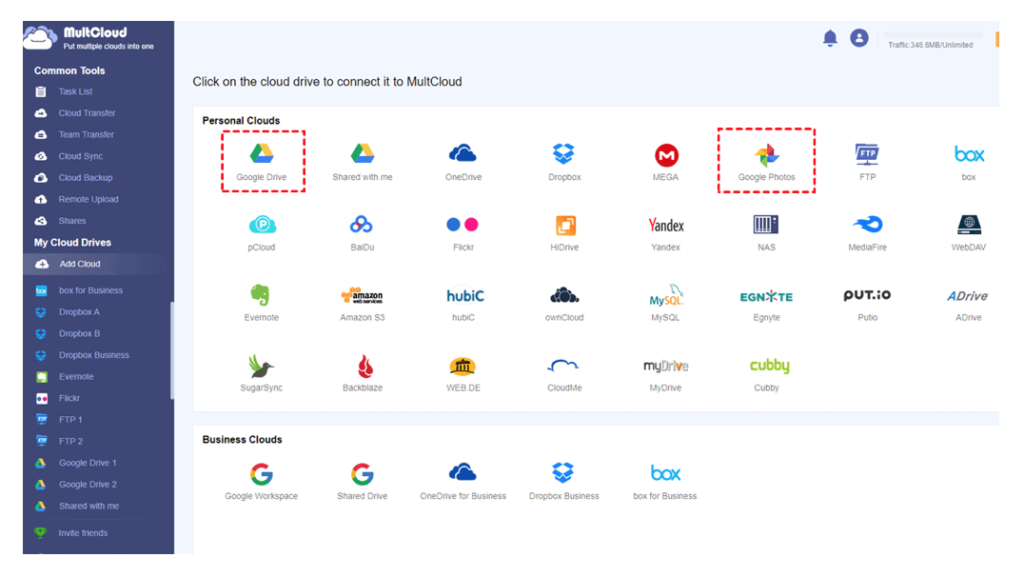
Note: MultCloud uses OAuth authorization protocol to connect your cloud services. Therefore, you don’t worry that MultCloud will have access to your cloud passwords.
Step 2. Set Up the Cloud Transfer Task
Open the “Cloud Transfer” tab from the left panel. Select “Google Drive” (or a specific photo folder inside Drive). Select Google Photos as the destination.
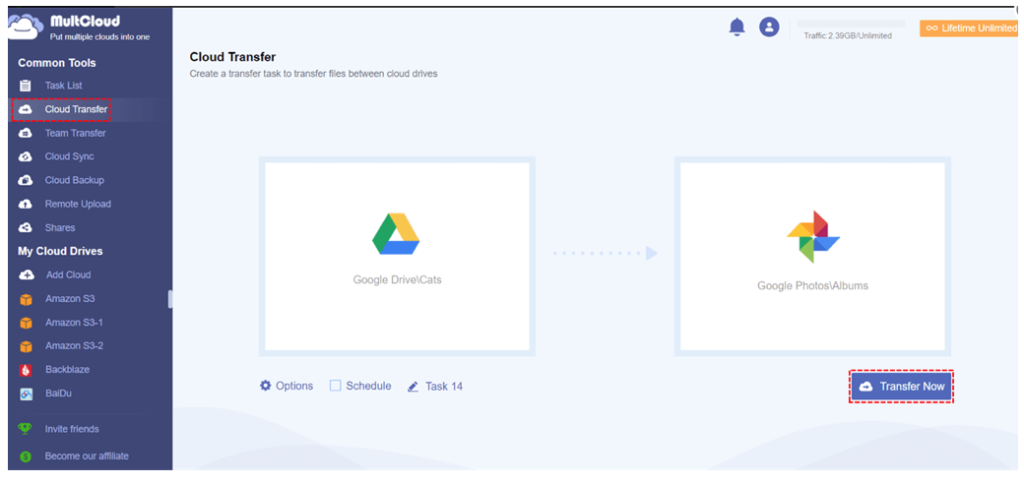
Note: Click “Options” at the bottom left to configure custom file filters (e.g., only include image extensions) or enable email alerts when the job finishes. Or click “Schedule” to set up an automatic transfer task in daily, weekly or monthly.
Step 3. Start the Migration
Click “Transfer Now”. MultCloud’s servers will begin moving your media directly in the background. You can safely close the window and track progress anytime under the “Task List” tab.
Verdict
No matter why you want to move photos from Google Drive to Google Photos, or sync Google Photos to Google Drive, MultCloud can make it as easy as 1,2,3. Moreover, apart from cloud transfer and cloud sync features, it also provides “cloud backup”, allowing users to back up data from one cloud to another one with full version management so that you can restore previous file versions with a single click.