20 Hidden Windows 11 Features You Should Start Using Today
Windows 11 brought a fresh design, a centered taskbar, and a cleaner user interface, but many users are only scratching the surface of what Microsoft’s latest operating system can do.
Most people use Windows the same way they have for years: opening apps, browsing files, and adjusting settings only when something goes wrong. However, Windows 11 includes many hidden features that can improve productivity, save time, increase security, and make daily tasks easier.
Whether you are a student, professional, gamer, or casual user, discovering these Windows 11 features can help you get more value from your PC without installing extra software.
Let’s explore some of the most useful hidden Windows 11 features you should start using today.
Digital privacy is not limited to computer security alone. Understanding the basics of device privacy is also important to protect yourself from suspicious software and unauthorized monitoring. Our guide What Is Stalkerware and How to Check If It Is on Your Phone explains this topic in detail.
1. Snap Layouts for Better Multitasking
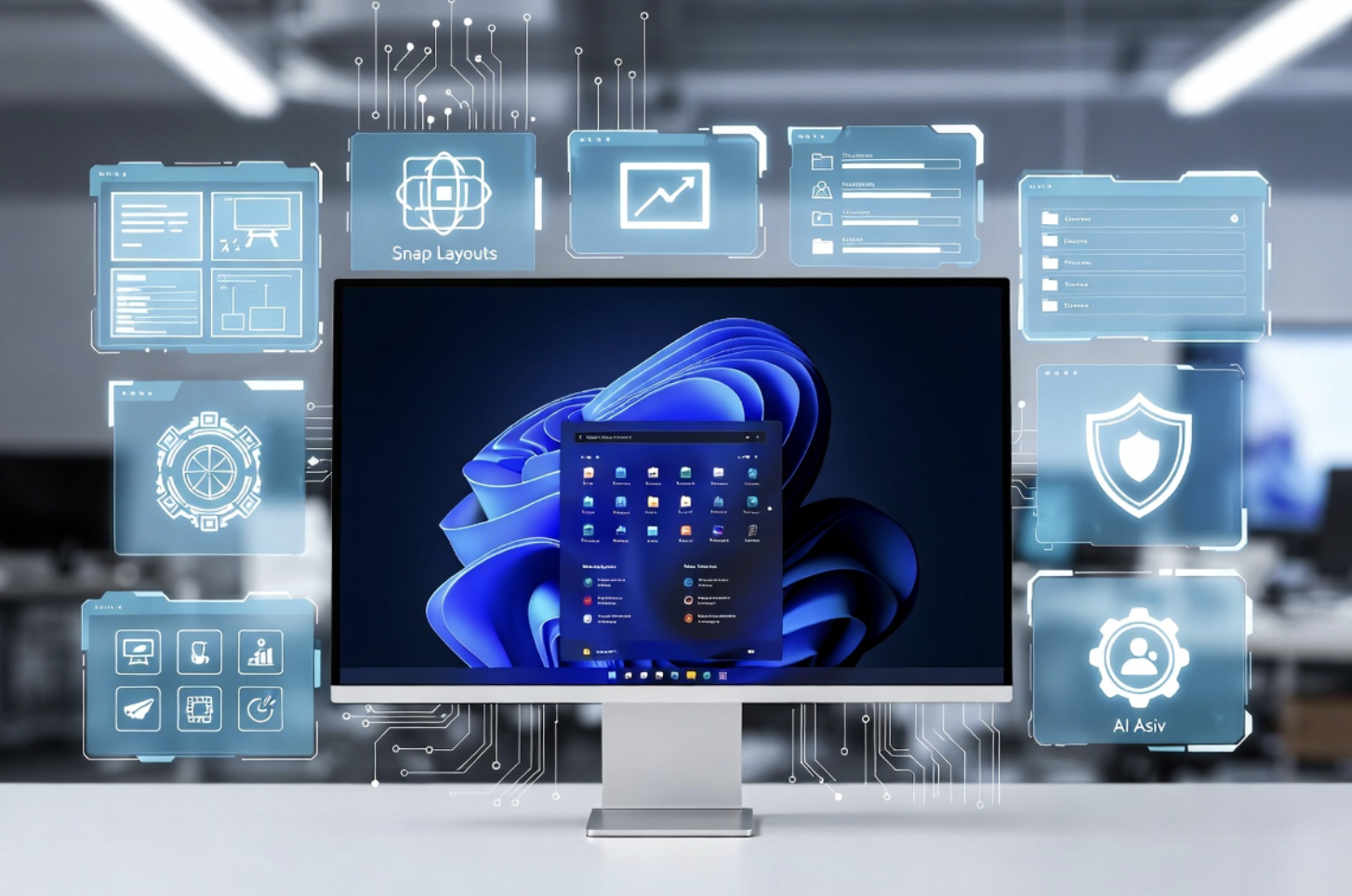
One of the best Windows 11 hidden features is Snap Layouts. It helps you organize multiple windows quickly without manually resizing them.
When you hover your mouse over the maximize button of any window, Windows shows different layout options. You can arrange apps side by side or create multiple sections on your screen.
For example, you can keep a browser open for research, a document editor for writing, and a messaging app visible at the same time.
This feature is especially useful for remote workers, students, and anyone who frequently switches between applications.
2. Clipboard History Saves Your Previous Copies
Most users only know the basic copy-and-paste function, but Windows 11 has a smarter clipboard system.
By pressing Windows + V, you can access your clipboard history and view previously copied text, images, and links.
This is extremely helpful when working on reports, collecting research information, or managing multiple pieces of content.
Instead of copying and pasting one item at a time, you can store several items and reuse them whenever needed.
3. Virtual Desktops for Organized Workspaces
Virtual Desktops allow you to create separate desktop environments on the same computer.
For example:
- One desktop for work
- One desktop for personal browsing
- One desktop for entertainment
You can switch between desktops without mixing different tasks together.
To create a new desktop, press Windows + Tab and select “New Desktop.”
This simple feature can reduce clutter and improve focus.
4. File Explorer Tabs for Easier File Management
Windows 11 introduced tabs inside File Explorer, similar to browser tabs.
Instead of opening multiple File Explorer windows, you can keep different folders open in separate tabs.
This makes tasks like moving files, comparing folders, and organizing projects much faster.
For example, a designer can keep project files in one tab and reference images in another.
5. Focus Sessions to Reduce Distractions
Windows 11 includes Focus Sessions inside the Clock app to help users stay productive.
This feature allows you to create dedicated work periods with breaks in between.
You can connect Focus Sessions with Microsoft To Do and Spotify to manage tasks and listen to music while working.
If distractions hinder your focus, utilizing this integrated feature can be an easy way to boost your productivity.
6. Built-In Screen Recording
Many users install third-party screen recording software without realizing Windows 11 already offers built-in recording options.
The updated Snipping Tool allows you to capture your screen and record specific areas.
This can be useful for:
- Creating tutorials
- Recording troubleshooting steps
- Saving important demonstrations
It is a lightweight alternative for basic screen recording needs.
7. Storage Sense Automatically Cleans Your PC
Over time, computers collect temporary files, old downloads, and unnecessary data.
Windows 11 Storage Sense automatically removes unwanted files to help free up storage space.
You can enable it from:
Settings → System → Storage
This feature is useful for users with limited SSD storage because it reduces the need for manual cleaning.
8. Dynamic Refresh Rate Improves Battery Life
Many modern laptops have high-refresh-rate displays, but higher refresh rates can consume more battery.
Windows 11 Dynamic Refresh Rate automatically adjusts your screen refresh rate depending on what you are doing.
For example, it can use a higher refresh rate for smooth scrolling and reduce it during basic tasks to save power.
9. Nearby Sharing for Quick File Transfers
Nearby Sharing allows you to send files between compatible Windows devices without using cables or external storage.
You can share:
- Documents
- Photos
- Videos
- Web links
It works similarly to AirDrop on Apple devices and is useful for quick transfers between computers.
10. Windows Terminal for Advanced Users
Windows Terminal combines Command Prompt, PowerShell, and other command-line tools into one modern application.
While beginners may not use it every day, it is powerful for:
- Developers
- IT professionals
- Advanced users
It allows faster system management and automation through commands.
11. Voice Access for Hands-Free Control
Windows 11 includes Voice Access, allowing users to control their computer using voice commands.
You can open applications, write text, and navigate menus without using a keyboard.
Although designed mainly for accessibility, it can also be helpful when your hands are busy or when multitasking.
12. Quick Settings Customization
The Quick Settings menu provides instant access to essential controls such as:
- WiFi
- Bluetooth
- Brightness
- Battery settings
- Night Light
You can customize this panel to keep your most-used settings within one click.
This saves time compared to searching through multiple menus.
13. Windows Sandbox for Safe Testing
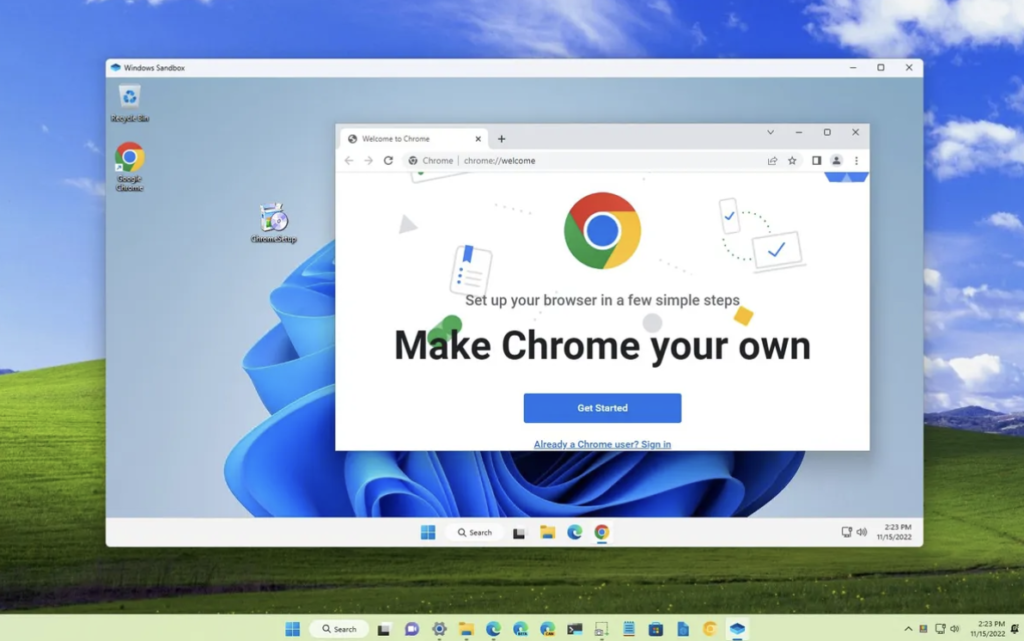
Windows Sandbox creates a temporary environment where you can test applications safely.
If you download an unknown program and want to check it before installing it on your main system, Sandbox provides an isolated space.
This feature is mainly available in Windows 11 Pro and Enterprise editions.
14. Advanced Startup Recovery Tools
Windows 11 includes recovery tools that can help when your PC experiences serious problems.
These include:
- Startup Repair
- Safe Mode
- System Restore
- Recovery options
Knowing where these tools are can save time during system failures.
15. Better Security With Microsoft Defender SmartScreen
Windows 11 comes with built-in security features designed to protect users from suspicious files and websites.
Microsoft Defender SmartScreen checks downloads and applications for potential risks.
For many users, the built-in protection is enough when combined with safe browsing habits.
More details are available through Microsoft’s official Windows security resource: Support Microsoft.
16. Hidden Keyboard Shortcuts
Keyboard shortcuts can significantly improve your workflow.
Useful Windows 11 shortcuts include:
- Windows + V — Clipboard History
- Windows + Z — Snap Layouts
- Windows + Shift + S — Screenshot tool
- Windows + A — Quick Settings
- Windows + Tab — Virtual Desktops
Learning these shortcuts can save minutes every day.
17. Power Mode Settings
Windows 11 lets you choose how your computer manages performance and battery usage.
You can select:
- Best power efficiency
- Balanced mode
- Best performance
Laptop users can save battery, while gamers and creators can prioritize performance.
18. Widgets for Quick Information
Windows 11 Widgets provide quick access to useful information such as:
- Weather
- Calendar
- News
- Sports updates
They are convenient for users who want information without opening multiple apps.
19. Better Backup Options
Windows 11 includes backup features that help protect important files and settings.
Regular backups are important because hardware failures, accidental deletion, or malware can happen unexpectedly.
A good backup routine can prevent major data loss.
20. Automatic Color Management
For users working with photos, videos, or design projects, Windows 11 offers improved display management features.
Compatible monitors can provide better color accuracy, helping creative professionals achieve more reliable results.
Common Mistakes Windows 11 Users Make
A lot of users tend to download unwanted optimization programs, skip important updates, or overlook the system settings altogether.
Windows 11 already includes many useful maintenance and security tools. Before installing third-party software, check whether Windows can already handle the task.
Conclusion
Windows 11 is packed with useful tools that many users never discover. Features like enhanced multitasking through Snap Layouts, along with better security and file handling options, can make daily computer use more efficient and seamless.
Fast and reliable connectivity is also important when using Windows 11, especially when multiple devices are connected to the same home or office network. To learn more about improving your wireless network performance, check out our detailed guide on Mesh Wi-Fi systems.
Instead of searching for additional software, explore the features already built into your operating system. A few small changes can completely improve your Windows 11 experience and help you work smarter every day.
Frequently Asked Questions
What are the best hidden Windows 11 features?
Snap Layouts, Clipboard History, Virtual Desktops, File Explorer Tabs, Focus Sessions, and Storage Sense are some of the most useful hidden features.
Are Windows 11 hidden features free?
Yes, most built-in Windows 11 features are included with the operating system.
How can I improve Windows 11 performance?
Use Storage Sense, manage startup apps, keep drivers updated, and adjust power settings according to your needs.
Is Windows 11 better than Windows 10?
Windows 11 offers improved security, modern features, and better multitasking tools, but hardware compatibility should be checked before upgrading.