
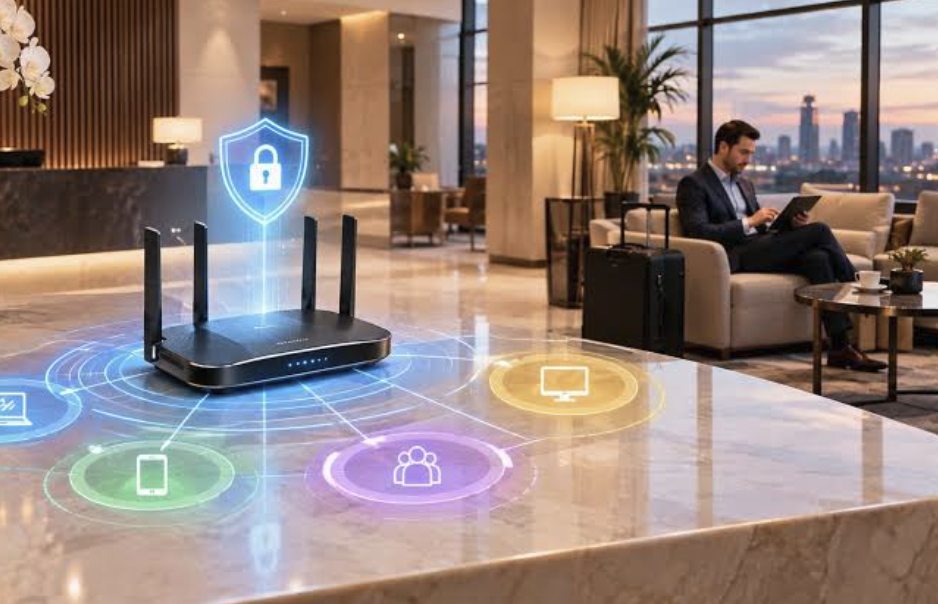
Home Wi-Fi Security: A Guide to Router Settings and Safe Networks
The router in your home is the front door to nearly everything digital you own. Laptops, phones, televisions, cameras, game consoles, smart speakers, thermostats, and doorbells all connect through it. If that door is weakly secured, a neighbor, a passerby, or an automated attack from across the world may get access to your traffic, your devices, or your personal information.
The good news is that most home networks can be made much safer in an afternoon. You do not need advanced technical skills, only a willingness to log in to your router, change a handful of settings, and build a few habits. Many routers ship with weak defaults, such as a generic administrator password or outdated features left switched on, and fixing those basics blocks a large share of common problems.
This guide covers how to access your router, which encryption settings to choose, how firmware updates and remote access affect risk, how a guest network and device separation limit damage, how to behave on public and shared networks, and how to spot signs of an intruder. Router menus differ by brand and model, so use the manufacturer’s support page for the exact steps on your device. The principles stay the same across brands.
Logging In to Your Router for the First Time
Many people have never opened their router’s settings. Doing so is the first step to taking control. You will need to connect to the network, either by Wi-Fi or by an Ethernet cable, and open the router’s admin page. The address is usually printed on a label on the router or listed in the manual. It often looks like a short series of numbers, though some brands use a companion app instead of a web page.
The label may also show the default username and password. If you have never changed them, change them now. Default credentials are widely published, so anyone who gets onto your network can try them. Choose a long, unique password for the router’s admin account, separate from your Wi-Fi password, and store it in a password manager. If the router lets you rename the admin username, do so.
While you are logged in, check the basics. Confirm the router’s model name and firmware version, and look at the list of connected devices. You may find items you do not recognize, which is worth investigating. Take a screenshot of the existing configuration before you change anything, so you can restore it if something breaks.
Rename the network, called the SSID. Avoid names that reveal your family name, address, or router brand, because these details help attackers choose targets. Pick something neutral. Hiding the SSID is not a useful security measure, since it can be discovered easily and may cause connection problems for some devices.
If your internet provider supplied the router, check what control they have. Some provider-managed devices limit the settings you can change, and the provider may update them remotely. In that case, ask the provider how to change passwords and which security features are enabled, or consider using your own router if the provider allows it.
- Admin address: Find it on the router label, in the manual, or in the manufacturer’s app.
- Admin password: Replace the default with a long, unique password stored in a password manager.
- Network name: Choose a neutral SSID that does not reveal personal details or the router model.
- Device list: Review connected devices and investigate anything unfamiliar.
- Backup: Screenshot or export your settings before making changes.
Encryption Settings Worth Choosing
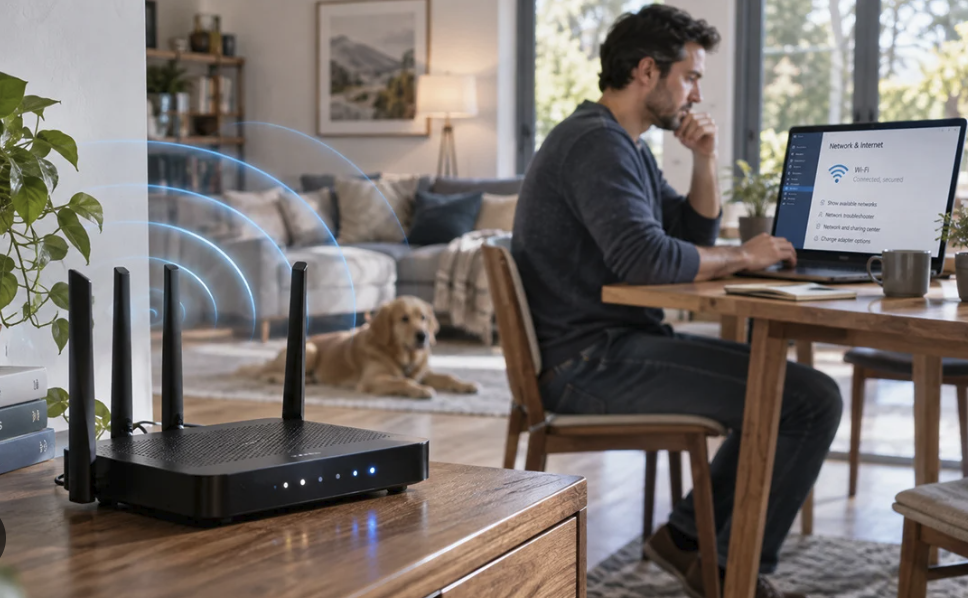
Encryption scrambles the data traveling between your devices and the router so that eavesdroppers cannot read it. The protocol you choose determines how strong that protection is. Modern routers offer several options, and picking the right one is among the most important decisions you will make.
Look for the security mode in your wireless settings. The best option available on most current routers is WPA3, which offers stronger protection against password guessing than older standards. If your router and devices support it, choose WPA3. If some older devices cannot connect, many routers offer a transition mode that supports both WPA3 and WPA2, which is a reasonable compromise. If WPA3 is not available, WPA2 with AES encryption is the minimum to accept.
Avoid old and broken options. WEP is obsolete and can be cracked quickly. The original WPA with TKIP is also outdated. An open network with no password allows anyone to join and observe unprotected traffic, so do not leave your main network open. If your router offers only these weak modes, it is probably time to replace it.
Create a strong Wi-Fi password, or passphrase. Length matters more than complexity. A passphrase made of several unrelated words, or a long random string, is hard to guess and easier to type than a short jumble of symbols. Do not reuse passwords from other accounts, and avoid anything related to your name, address, or phone number. Share it with guests through a separate guest network rather than handing out the main one.
Be careful with WPS, the push-button or PIN-based setup feature. Some implementations have known weaknesses, especially the PIN method. If you do not need it, turn it off in the router settings.
Change the password if you suspect it has been shared too widely, if a former roommate or contractor had access, or if you see unexplained devices. After changing it, reconnect your devices and remove old saved networks if needed.
- WPA3: The strongest mainstream option, best choice when your devices support it.
- WPA2 with AES: A reasonable fallback when older devices cannot use WPA3.
- Obsolete modes: WEP, WPA with TKIP, and open networks should not be used for your main network.
- Strong passphrase: A long, unique phrase that is not tied to personal information.
- WPS: Disable it if you do not need it, especially the PIN method.
Firmware Updates and Remote Access
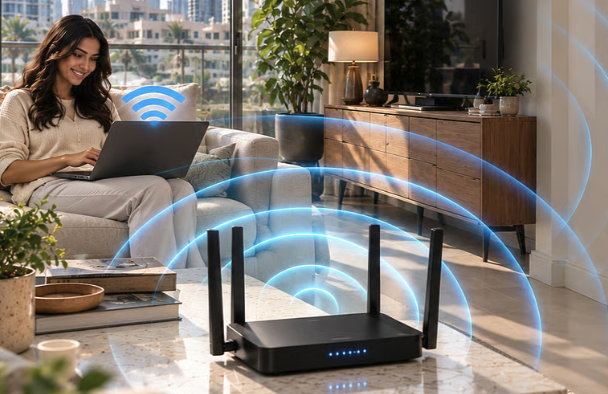
A router is a small computer, and like any computer it runs software that needs updates. Firmware is the router’s internal software, and manufacturers release new versions to fix security flaws, improve performance, and add features. Outdated firmware is one of the most common weaknesses in home networks, because attackers actively scan the internet for routers with known vulnerabilities.
Check your current version in the admin page and compare it with the latest listed on the manufacturer’s support site. Many modern routers can update automatically or notify you when an update is ready. Turn on automatic updates if offered, and still check manually every few months. Download updates only from the manufacturer or the router’s built-in updater, never from a link in an unexpected email.
Know when your router stops receiving support. Manufacturers eventually end updates for older models. If your router is several years old and no longer gets security patches, consider replacing it. A new router can improve both security and speed, and it is a better investment than patching an abandoned device.
Review remote management features. Remote access lets you manage the router from outside your home, but it also exposes the admin page to the internet, which increases risk. If you do not need it, turn it off. If you do, use a strong password, enable two-factor authentication where supported, and restrict access if the settings allow.
Disable features you do not use. UPnP, which lets devices open ports automatically, is convenient but has been abused by malware, so consider turning it off unless a game or app requires it. Turn off any unused file sharing, media servers, or built-in services. Each active feature is another possible way in.
Also confirm that the router’s firewall is enabled. Most have a basic firewall on by default, but verify it. Avoid setting up port forwarding unless you need it and grasp the exposure, since it opens a path from the internet to a device in your home.
- Firmware updates: Install them promptly, and enable automatic updates if available.
- End of support: Replace routers that no longer receive security patches.
- Remote management: Turn it off unless you need it, and protect it strongly if you do.
- UPnP and extras: Disable convenience services you do not use.
- Firewall: Verify it is on, and avoid unnecessary port forwarding.
Guest Networks and Device Segmentation
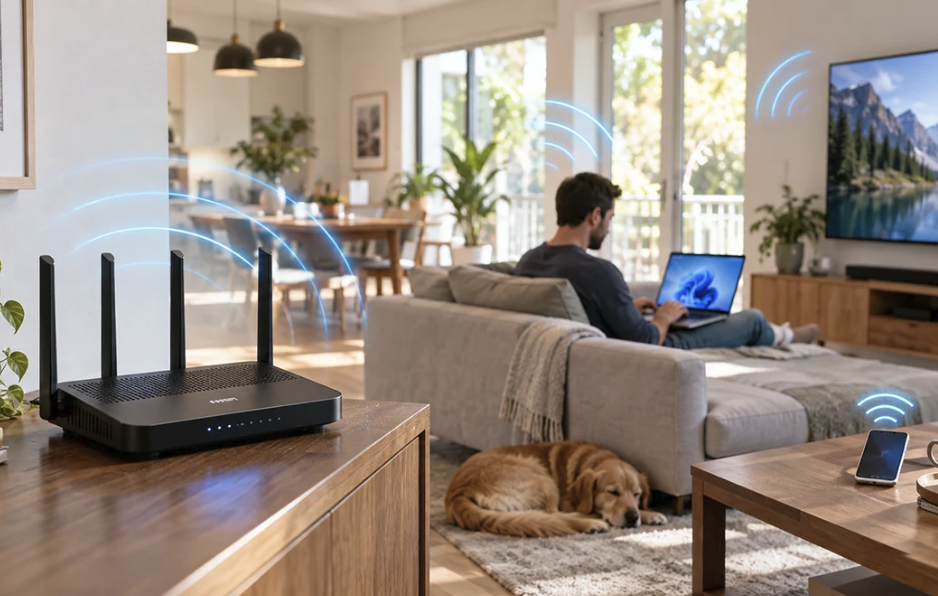
Not every device deserves the same level of trust. Smart televisions, plugs, cameras, and visitors’ phones often have weaker security than your laptop, and they may rarely get updates. If one of them is compromised on the same network as your computers, an attacker may use it as a stepping stone.
Most routers include a guest network feature. Enable it, give it a separate name and a strong password, and use it for visitors. A properly configured guest network isolates guests from your main devices, so they cannot see your computers, printers, or shared files. Look for an option such as client isolation or access to the local network, and make sure it is blocked.
Consider putting smart home gadgets on the guest network too, or on a dedicated network for internet-of-things devices if your router supports it. Devices like light bulbs and speakers need internet access but do not need to talk to your computers. Isolating them limits the damage if one is hacked. Check that they still work after moving, since some devices need to be on the same network as the phone that controls them.
Some routers support virtual networks, called VLANs, or offer multiple SSIDs for different purposes. These can be useful for home offices, children’s devices, or security cameras. Advanced setups are not essential for most households, but the concept is worth knowing: separate trusted and untrusted devices whenever convenient.
Think of the networks as zones, each with a different level of trust.
- Main network: Laptops, phones, and tablets you control and update regularly.
- Guest network: Visitors’ devices, kept apart from your files and printers.
- Smart home zone: Cameras, speakers, plugs, and televisions that need internet access but little else.
- Work network: A separate connection for employer-managed equipment, where your router allows it.
Review which devices connect. Remove devices you no longer use, and rename the ones you keep so you can recognize them. Use parental controls and content filters where needed, and check the privacy settings on smart devices, including microphones and cameras.
Finally, change default passwords on every connected device, not only the router. Cameras and smart gadgets often ship with simple credentials, and attackers search for them. Update device software and register products so you receive security notices.
Safer Habits for Public and Shared Networks
Your home router is only part of the picture. Coffee shops, airports, hotels, libraries, and shared apartment buildings all offer networks that you do not control. These networks may be monitored, misconfigured, or imitated by attackers.
Assume that a public network is not private. Many sites now use encryption, shown by a padlock and the secure web address prefix, which protects the content of your traffic from casual observers. Even so, avoid logging in to sensitive accounts, such as banking, on unfamiliar networks if you can use mobile data instead. Your phone’s hotspot feature is often a safer choice when you must do something important.
Be alert to fake networks. An attacker can create a network with a name similar to the cafe’s, hoping you will join it. Ask staff for the exact network name and password, and confirm it before connecting. Turn off automatic joining of open networks on your phone and laptop so devices do not connect to unknown hotspots on their own.
Use a virtual private network, or VPN, from a reputable provider if you need to use public Wi-Fi regularly. A VPN encrypts traffic between your device and the provider’s server, which helps against local snooping. It is not a cure-all, since you must trust the provider, and free services may monetize your data. Read the privacy policy and choose carefully.
Keep your devices updated, and turn on the built-in firewall. Disable file sharing and AirDrop-style discovery when away from home. Use multi-factor authentication on important accounts, so a stolen password alone is not enough.
In shared housing, ask who controls the router. If a landlord or roommate manages it, they might see connected devices or have administrative access. For sensitive work, consider using your own hotspot or a personal router connected behind the shared one.
Pay attention to captive portals, the sign-in pages that ask for an email address or a room number. Provide only what is necessary, and consider using an alternate email address for such pages to limit marketing and data exposure.
Log out of accounts and forget the network when you leave. Taking these steps costs little and prevents many problems.
Spotting Signs of an Intruder
Even with good settings, it is smart to watch for signs that something is wrong. Most intrusions are not dramatic, so regular checks matter more than reacting to alarms.
Look at the connected device list. Compare it with the devices you own, and investigate unfamiliar names. Some devices appear with generic or manufacturer names, so identify them by turning off your own gadgets one at a time and seeing which entries vanish. If something truly does not belong, change your Wi-Fi password and the router admin password, which usually disconnects unknown devices.
Notice performance problems. Unexplained slowdowns, constant buffering, or heavy activity lights when nothing is in use can be signs of unwanted use, though they often have innocent causes such as updates, interference, or provider issues. Restart the router and run a speed test on a wired connection to compare.
Watch for configuration changes you did not make. A changed admin password, altered DNS settings, or unfamiliar port forwarding rules are red flags. Attackers sometimes change DNS settings to redirect you to fake websites. If you see unexpected changes, reset the router to factory settings, update the firmware, and then set it up again with new passwords. Keep in mind that a reset erases your configuration, so keep your backup notes handy.
Be alert to warnings on your devices, such as browser certificate errors, unexpected login alerts from your accounts, or security software notices. Check account activity pages for logins from unfamiliar places, and change passwords if needed.
If you suspect serious compromise, disconnect the affected devices, run a security scan, and contact your internet provider or the router manufacturer. For financial or identity concerns, notify your bank and follow your national guidance on reporting cybercrime. Replace the router if it is old, since it may be vulnerable again.
Finally, set a routine. Every few months, check the device list, update firmware, review settings, and test your guest network. Treat the check as a seasonal chore, like changing the batteries in a smoke detector.
Final Thoughts
Home network security does not require expertise, only attention to a handful of fundamentals. Log in to your router and replace default credentials, choose the strongest encryption it offers, keep the firmware current, turn off features you do not need, and separate guests and smart gadgets from your main devices. Add careful habits on public networks, and check your device list periodically.
These steps work together. No single setting makes a network invulnerable, but layers raise the cost of attacking you, and most attackers move on to easier targets.
Router interfaces, standards, and recommended settings change over time, so rely on the manufacturer’s current support pages and trusted security agencies for up-to-date instructions. This article is general information and not a substitute for professional security advice.
Frequently Asked Questions
Is WPA3 necessary, or is WPA2 enough?
WPA2 with AES is acceptable when WPA3 is not available, especially with a strong passphrase. WPA3 offers better protection against password guessing and is the better choice when your router and devices support it. A transition mode that supports both can help during the changeover.
Should I hide my network name?
Hiding the SSID does not add real security, because the network can still be discovered with simple tools. It may also cause connection problems. Use strong encryption and a good password instead.
How often should I update my router?
Check for firmware updates every few months, or turn on automatic updates if your router supports them. Install critical security updates as soon as they are available. If the manufacturer has stopped issuing updates for your model, plan to replace it.
Do I need a VPN at home?
Most households do not need a VPN for ordinary home browsing, since good router security and encrypted websites cover the basics. A VPN is more useful on public networks or for specific privacy needs. Choose a reputable provider and read its privacy policy.
Is a guest network really more secure?
Yes, when it is configured with isolation from your main devices. It keeps visitors’ phones and low-security gadgets away from your computers and files. Use a strong password on the guest network as well.
How do I reset my router if I think it has been compromised?
Most routers have a small reset button that you hold for several seconds, which restores factory settings. Afterward, update the firmware, set a new admin password and Wi-Fi password, and review every setting. Consult the manufacturer’s instructions for your model first.