
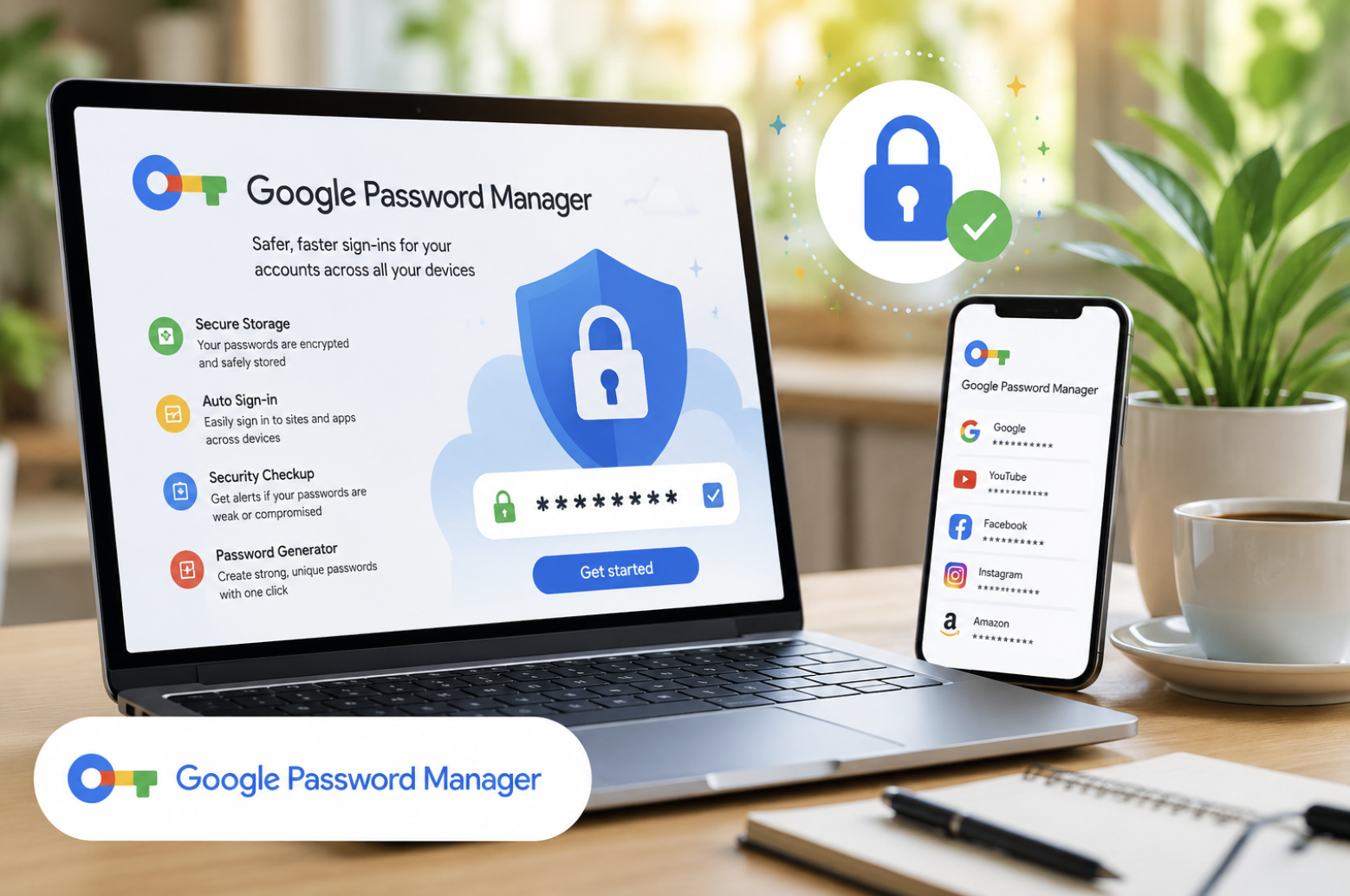
Google Password Manager: The Hidden Security Tool That Makes Every Login Safer
Have you ever clicked the “Forgot Password?” button so many times that it became part of your routine? You’re not alone. Modern internet users manage dozens, sometimes even hundreds, of online accounts for banking, shopping, streaming, work, education, and social media.
Remembering a different, secure password for every account is nearly impossible. Unfortunately, using the same password everywhere creates a serious security risk. This is where Google Password Manager quietly becomes one of the most valuable tools available today.
Built directly into your Google Account, Chrome browser, and Android devices, it helps you create stronger passwords, stores them securely, fills them in automatically when you need them, and even warns you if your credentials have been exposed in a data breach.
Google Password Manager: The Free Built‑In Tool Simplifying Online Security
Unlike many standalone password managers that require separate installations or subscriptions, Google Password Manager is already available to millions of users at no additional cost. Whether you’re browsing on your laptop, unlocking your favorite apps on Android, or exploring the growing world of passwordless authentication with passkeys, this built-in security solution makes online life easier and significantly safer.
In this comprehensive guide, we’ll explore how Google Password Manager works, why cybersecurity experts recommend using a password manager, its biggest advantages and limitations, practical security tips, and how this powerful feature is helping shape the future of digital identity.
What Is Google Password Manager?
Google Password Manager is Google’s integrated password management solution designed to help users securely store, organize, and protect their login credentials.
Instead of memorizing dozens of complicated passwords, users can rely on Google’s encrypted storage system to keep usernames, passwords, and modern passkeys safe. The service is closely connected with your Google Account, allowing login information to synchronize across compatible devices.
Whether you’re using Chrome on Windows, macOS, Linux, ChromeOS, or browsing on an Android smartphone, your saved credentials remain available whenever you need them. Its primary purpose is simple: improve security while making everyday internet use faster and more convenient.
Why Password Management Matters More Than Ever
Cybercrime has evolved dramatically over the past decade. Data breaches occur regularly, phishing scams continue becoming more convincing, and hackers increasingly rely on stolen credentials rather than sophisticated attacks. One of the biggest mistakes internet users make is reusing the same password across multiple websites.
If just one service suffers a breach, attackers often try those same credentials on banking websites, email accounts, shopping platforms, and social media profiles. A password manager reduces these risks by encouraging stronger security habits, including:
- Creating unique passwords for every account.
- Eliminating password reuse.
- Storing complex credentials securely.
- Making strong passwords easy to use.
- Reducing the temptation to choose weak passwords.
Instead of security becoming an inconvenience, password managers make good cybersecurity almost effortless.
How Google Password Manager Works
Google Password Manager operates behind the scenes while you browse the web or use supported applications. Whenever you create a new account or sign into an existing website, Google detects the login page and offers to save your credentials securely.
The next time you visit that website, your username and password can be filled automatically with just a click or tap. Everything remains connected to your Google Account, allowing seamless synchronization across devices after you sign in. The service can automatically:
- Save newly entered passwords.
- Suggest highly secure passwords during account creation.
- Autofill saved login information.
- Detect compromised credentials.
- Recommend replacing weak passwords.
- Synchronize login data across supported devices.
- Store modern passkeys alongside traditional passwords.
This automation removes much of the frustration associated with online account management.
Key Features That Make Google Password Manager Stand Out
Secure Password Storage
Every saved password is protected using Google’s encryption technologies before being stored within your Google Account. This significantly reduces the risk of losing handwritten passwords or exposing sensitive information stored in unsecured documents. Instead of relying on memory or notebooks, users gain access to a centralized vault that securely organizes all their credentials.
Automatic Password Autofill
One of the biggest conveniences offered by Google Password Manager is autofill. After credentials are saved, Google can automatically insert usernames and passwords whenever you revisit supported websites or applications. This saves time while also reducing typing errors, especially when using lengthy randomly generated passwords.
The autofill feature works smoothly across Chrome browsers and Android devices connected to the same account.
Strong Password Generator
Creating secure passwords is one of the hardest parts of online security. Google Password Manager removes the guesswork by generating long, unique, and highly complex passwords whenever you create a new online account. These automatically generated passwords are significantly more resistant to brute-force attacks than commonly used passwords chosen by humans.
Security Checkup
Password security doesn’t end after creating an account. Google regularly scans saved credentials and identifies passwords that may have appeared in known data breaches, are too weak, or are reused across multiple websites.
When problems are detected, users receive recommendations to update vulnerable passwords before attackers can exploit them.
Cross Device Synchronization
Because everything is connected to your Google Account, saved passwords remain available on multiple devices without requiring manual transfers. Whether switching from a desktop computer to an Android phone or logging into Chrome on another device, your credentials stay synchronized automatically.
Passkey Support
Google Password Manager now supports passkeys, an emerging authentication method designed to replace traditional passwords. Instead of typing passwords, passkeys rely on secure device authentication methods such as fingerprints, facial recognition, or screen locks. This modern technology provides stronger protection against phishing attacks while making sign-ins even faster.
Getting Started with Google Password Manager
Setting up Google Password Manager requires only a few simple steps. First, sign into your Google Account using Chrome or an Android device. Next, enable password saving inside Chrome’s settings if it is not already activated.
As you browse websites or log into applications, Google will begin offering to save your login credentials securely. Whenever you revisit those websites later, your passwords can be filled automatically without needing to remember or manually enter them.
The setup process takes only a few minutes but provides long-term convenience and improved online protection.
Where You Can Access Your Saved Passwords
Google Password Manager is available from several locations within Google’s ecosystem. Users can manage saved credentials through Chrome browser settings, Android security settings, their Google Account security dashboard, or Google’s dedicated Password Manager interface. This centralized access makes reviewing, updating, deleting, or organizing saved passwords extremely simple.
Whether using a smartphone or desktop computer, account management remains consistent and easy to navigate.
Understanding Google’s Autofill Technology
Autofill is one of the most frequently used features inside Google Password Manager. Instead of manually entering usernames and passwords every time you visit a website, Google recognizes previously saved login pages and fills the information instantly. This saves valuable time while reducing frustration associated with complex passwords.
Autofill also decreases typing mistakes and encourages users to accept stronger automatically generated passwords because they rarely need to type them manually. For mobile users especially, autofill creates a much smoother browsing experience.
The Rise of Passkeys
Passwords have protected online accounts for decades, but they are gradually being replaced by newer authentication methods.
Passkeys eliminate the need to remember complicated credentials by relying on device-based verification. Instead of typing a password, users simply verify their identity using a fingerprint, face recognition, or screen lock.
Google Password Manager stores these passkeys securely and synchronizes them across supported devices, allowing users to enjoy faster logins with greater protection against phishing and credential theft. Many technology companies are actively expanding support for passkeys, making them one of the most important developments in modern cybersecurity.
How Google Password Manager Strengthens Online Security
Google Password Manager improves digital safety through multiple layers of protection rather than relying on a single security feature. All saved passwords are encrypted before storage, reducing the likelihood of unauthorized access.
The built-in monitoring system continually checks for passwords that have appeared in publicly known data breaches and alerts users whenever action is required. It also identifies passwords that are weak or reused across multiple websites, encouraging stronger security habits before problems occur.
By automatically generating unique credentials, the manager significantly lowers the chances of attackers gaining access through password guessing or credential stuffing attacks.
Major Benefits of Using Google Password Manager
One of the biggest reasons for its popularity is that it is completely free for anyone with a Google Account. There is no separate subscription fee, complicated installation, or steep learning curve. Its integration with Chrome and Android provides a seamless user experience, while automatic synchronization keeps passwords available across multiple devices. The interface is straightforward enough for beginners yet powerful enough to handle the needs of everyday users.
By removing the burden of remembering dozens of passwords, Google Password Manager encourages better online security without making life more complicated.
Potential Drawbacks to Consider
Although Google Password Manager offers excellent functionality, it may not satisfy every user’s needs. People who rely heavily on multiple browsers outside the Google ecosystem may find dedicated third-party password managers more flexible. Some premium password managers also include advanced features such as encrypted document storage, secure password sharing, emergency access, family management tools, and more extensive security reports.
Additionally, password synchronization depends on internet connectivity and an active Google Account, meaning offline access may be more limited in certain situations. Even so, for most everyday users, Google Password Manager provides an excellent balance between convenience and security.
Simple Habits That Make Your Passwords Even Safer
Technology alone cannot guarantee complete security. Good digital habits remain equally important. Always create unique passwords for every website instead of reusing the same login credentials. Enable two-factor authentication whenever it is available, adding another layer of protection beyond your password. Review your saved passwords periodically and remove accounts you no longer use.
Pay attention to Google’s security alerts and update compromised passwords immediately. Never share your passwords through email, messaging apps, or unsecured websites, regardless of who requests them. These small habits dramatically reduce your overall cybersecurity risk.
Why Millions of People Trust Google Password Manager
Google Password Manager has become one of the world’s most widely used password management solutions because it combines simplicity with strong built-in security.
Most internet users already have a Google Account, making the service immediately accessible without requiring extra downloads or complicated setup procedures. Its automatic password generation, autofill capabilities, security monitoring, synchronization, and passkey support create a complete experience for users who simply want secure and convenient account management.
As cybersecurity threats continue evolving, having these protections available by default makes online safety far more achievable for everyday users.
The Future of Password Management
The internet is gradually moving toward a passwordless future. Technology companies are investing heavily in authentication methods that reduce dependence on traditional passwords while increasing security.
Google continues expanding innovations in areas such as stronger encryption, AI-assisted threat detection, secure cross-device authentication, improved identity verification, and broader adoption of passkeys.
Although passwords are unlikely to disappear overnight, password managers will continue serving as an essential bridge between today’s authentication systems and tomorrow’s passwordless digital world. For users who adopt these tools early, the transition will be smoother, safer, and significantly more convenient.
Conclusion
Google Password Manager has evolved into far more than a simple password-saving feature inside Chrome. It is now a comprehensive security solution that helps users generate strong passwords, organize login credentials, detect compromised accounts, synchronize information across devices, and embrace next-generation authentication through passkeys. Its greatest strength lies in combining powerful security features with exceptional ease of use.
Instead of asking users to memorize dozens of complex passwords or install separate software, Google integrates password protection directly into services millions already use every day.
Whether you’re new to password managers or looking for an easier way to improve your online security, Google Password Manager offers a practical, reliable, and completely free solution that helps protect your digital life while making everyday browsing faster and more convenient.
Frequently Asked Questions
1. Is Google Password Manager free to use?
Yes, it is completely free for anyone with a Google Account.
2. Does Google Password Manager work on Android phones?
Yes, it is fully integrated with Android devices.
3. Can Google Password Manager generate strong passwords?
Yes, it automatically creates secure and unique passwords for new accounts.
4. Are passwords stored securely in Google Password Manager?
Yes, saved passwords are encrypted and protected within your Google Account.
5. What is autofill in Google Password Manager?
Autofill automatically enters your saved usernames and passwords on supported websites and apps.
6. Can I access my saved passwords on multiple devices?
Yes, your passwords sync across compatible devices signed into the same Google Account.
7. What are passkeys?
Passkeys are passwordless login credentials that use biometric or device authentication.
8. Does Google Password Manager warn about hacked passwords?
Yes, it alerts users if saved passwords appear in known data breaches.
9. Can I edit or delete saved passwords?
Yes, you can update or remove saved credentials whenever needed.
10. Is Google Password Manager better than writing passwords on paper?
Yes, encrypted digital storage is significantly safer and more convenient than keeping passwords on paper.